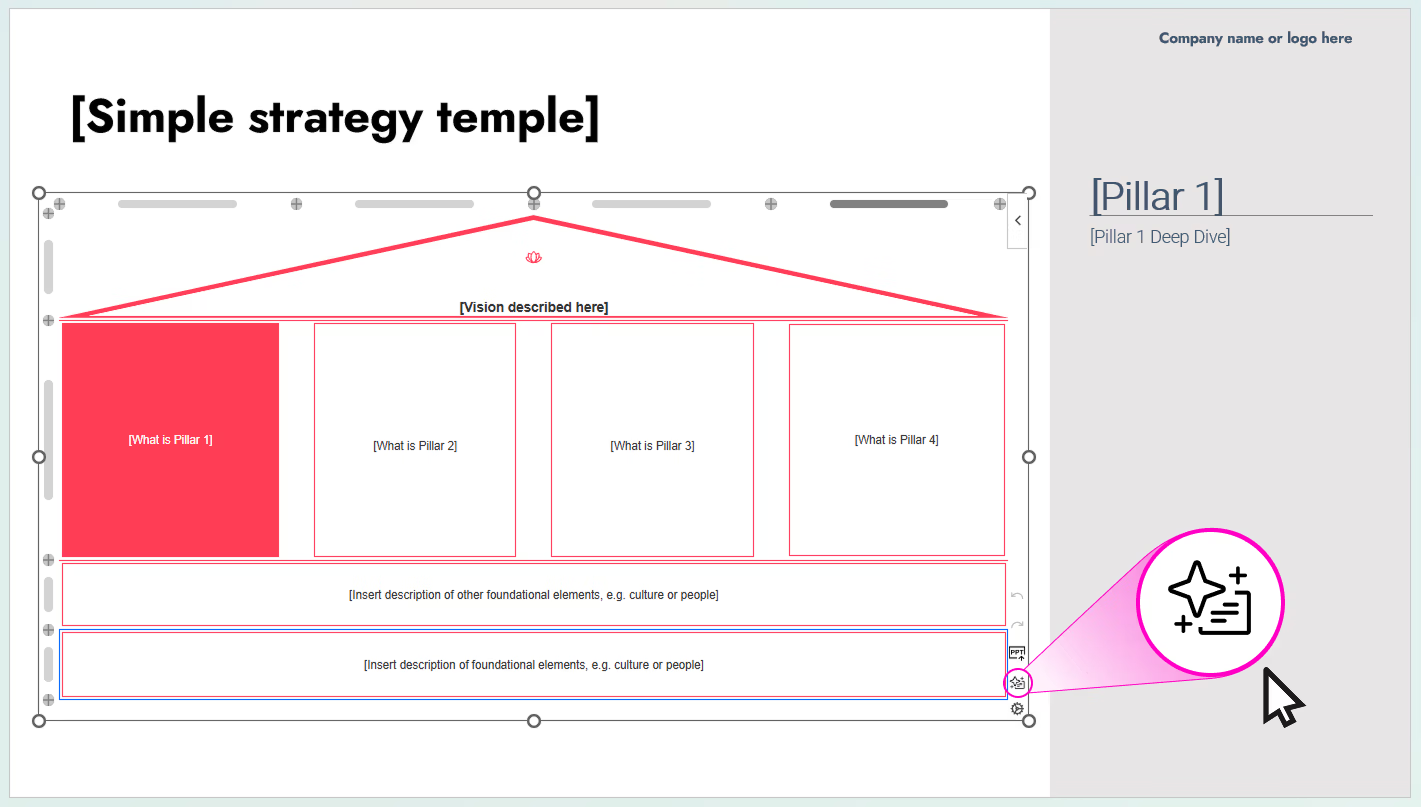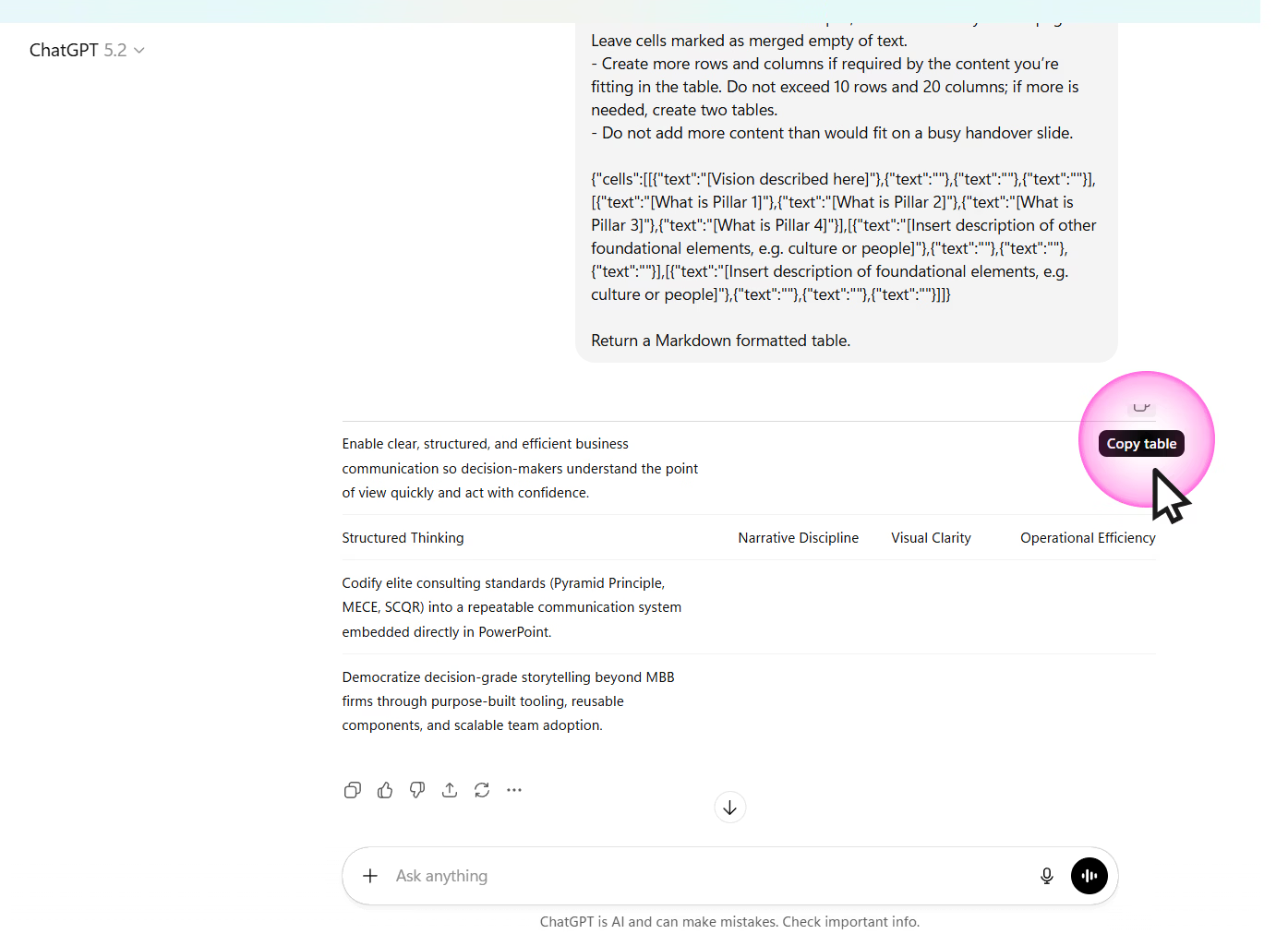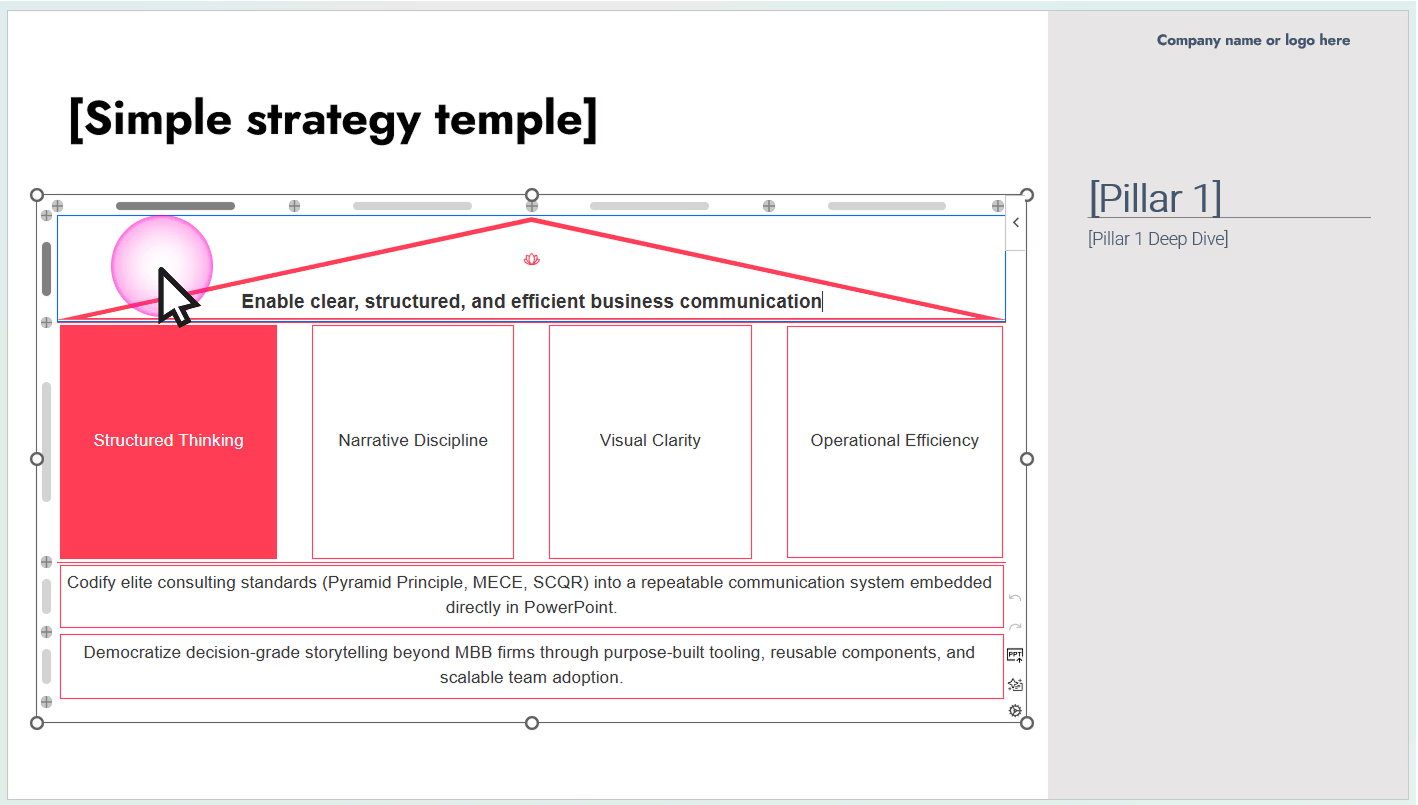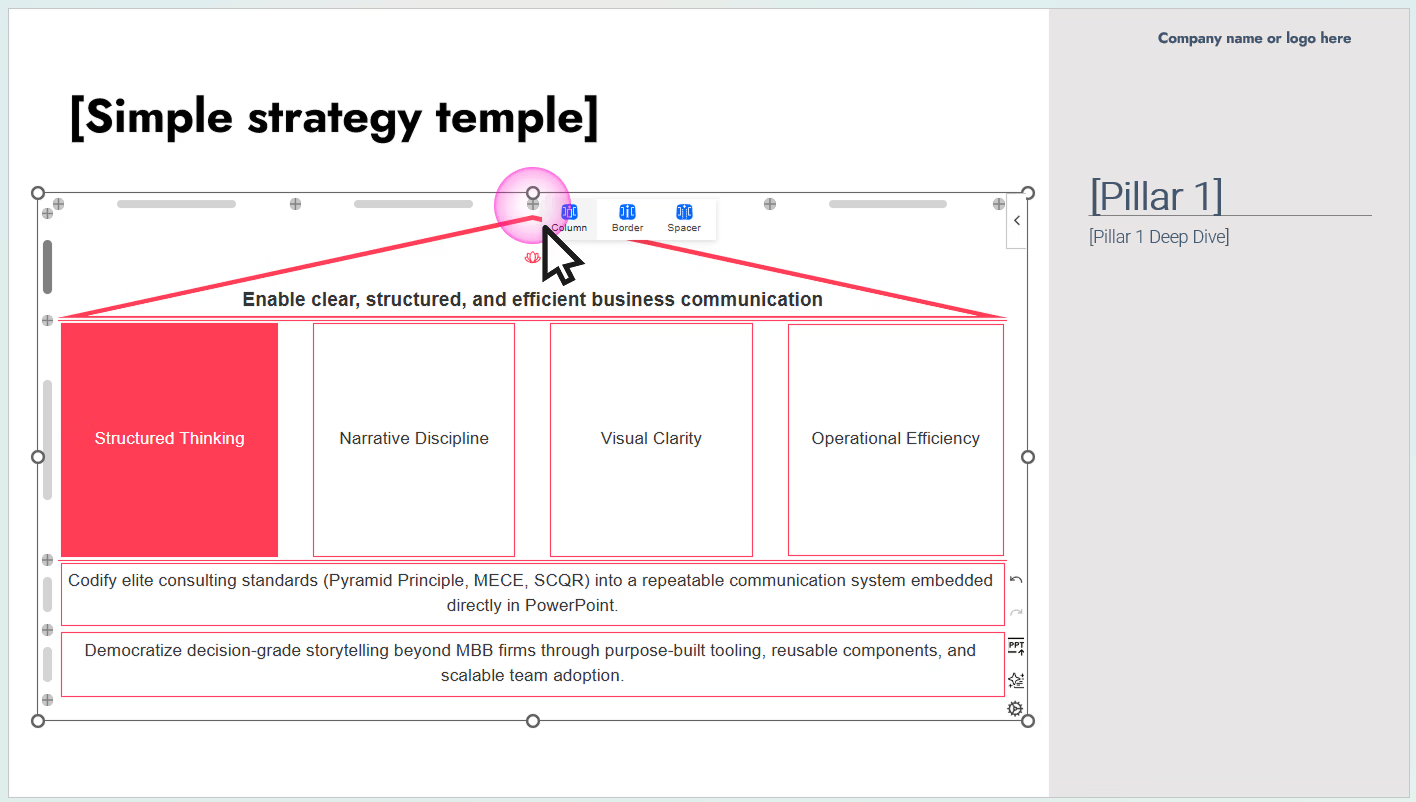


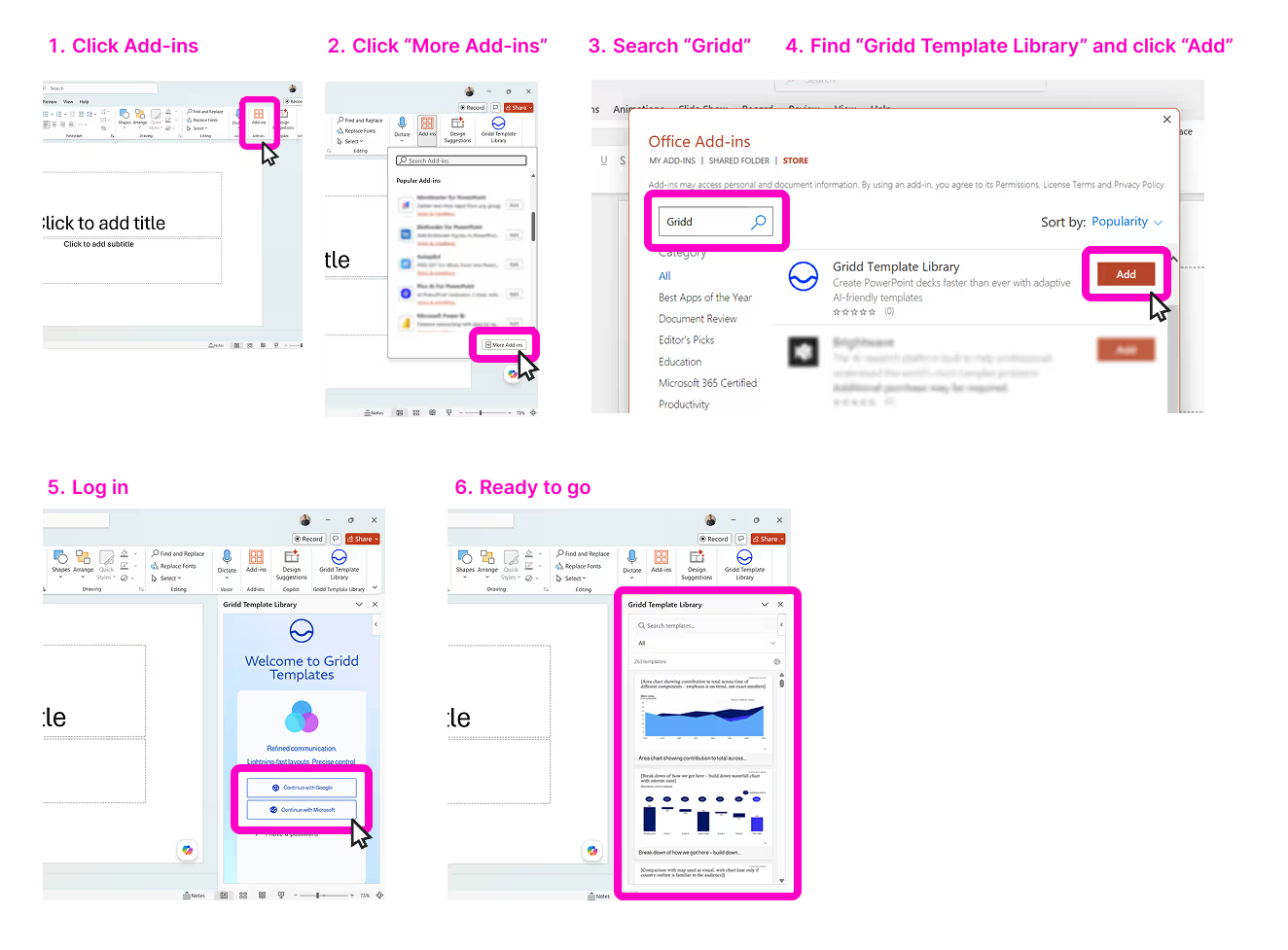
Install the Template Library add-in
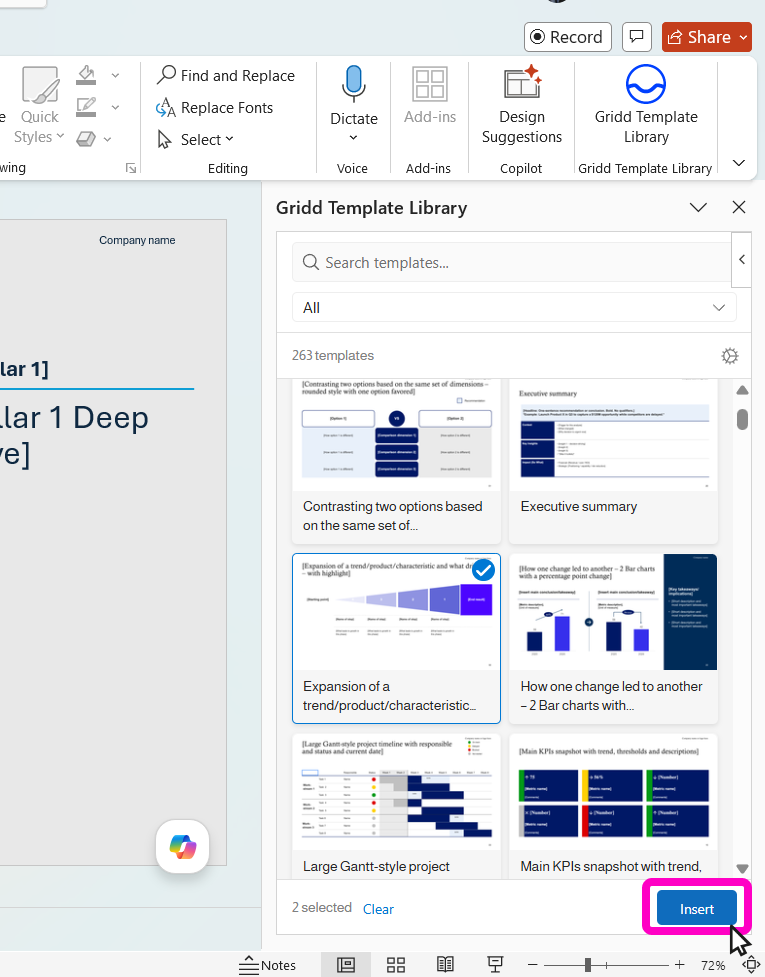
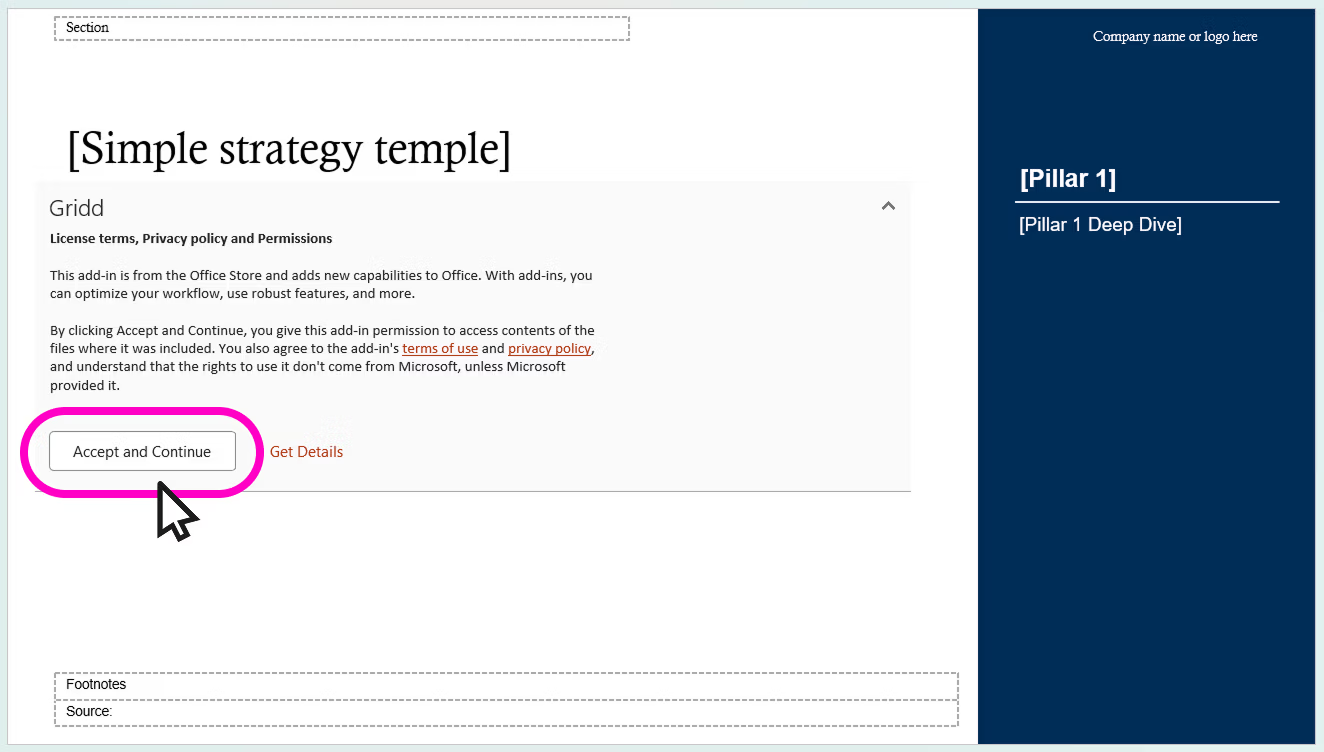
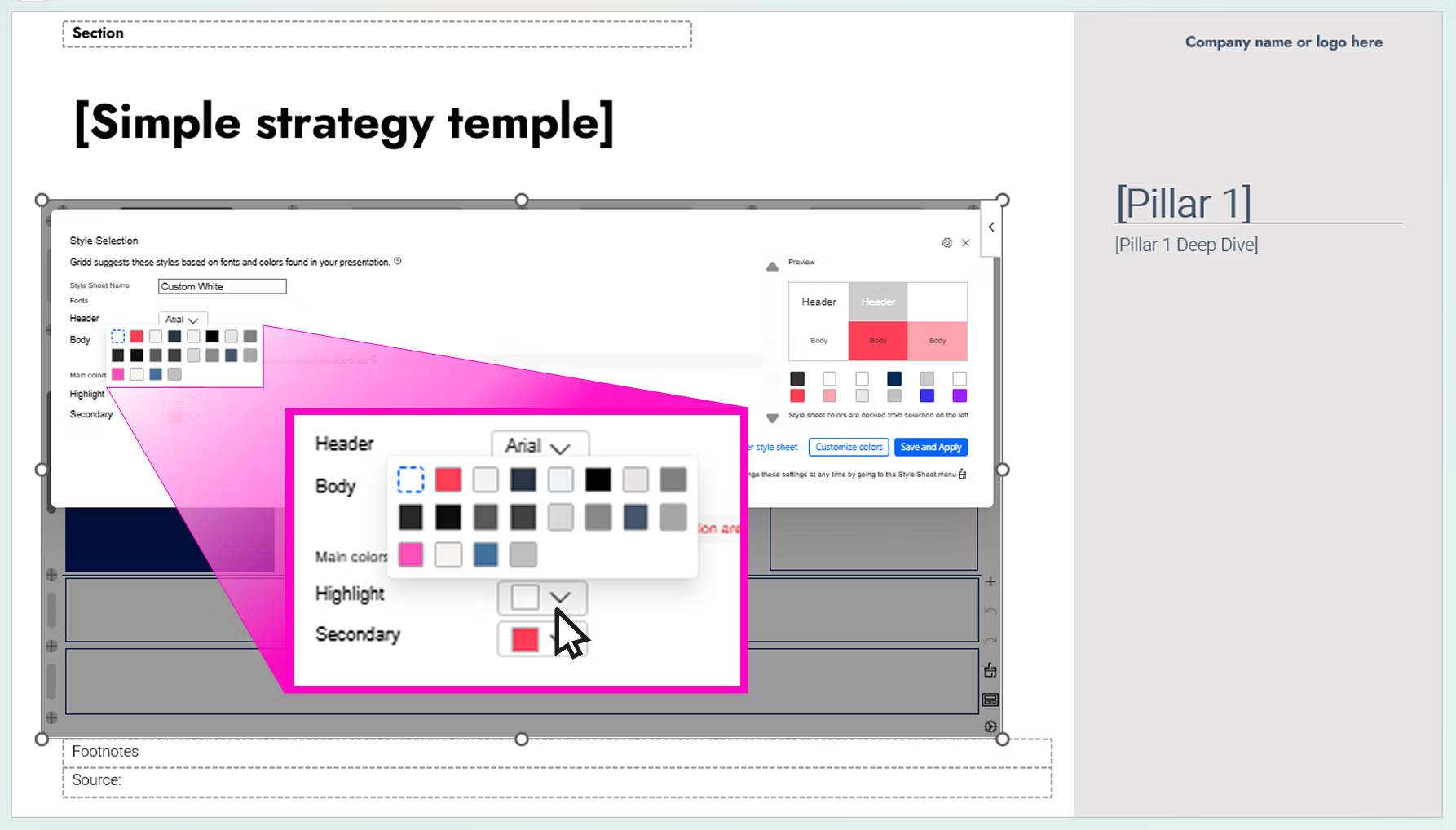
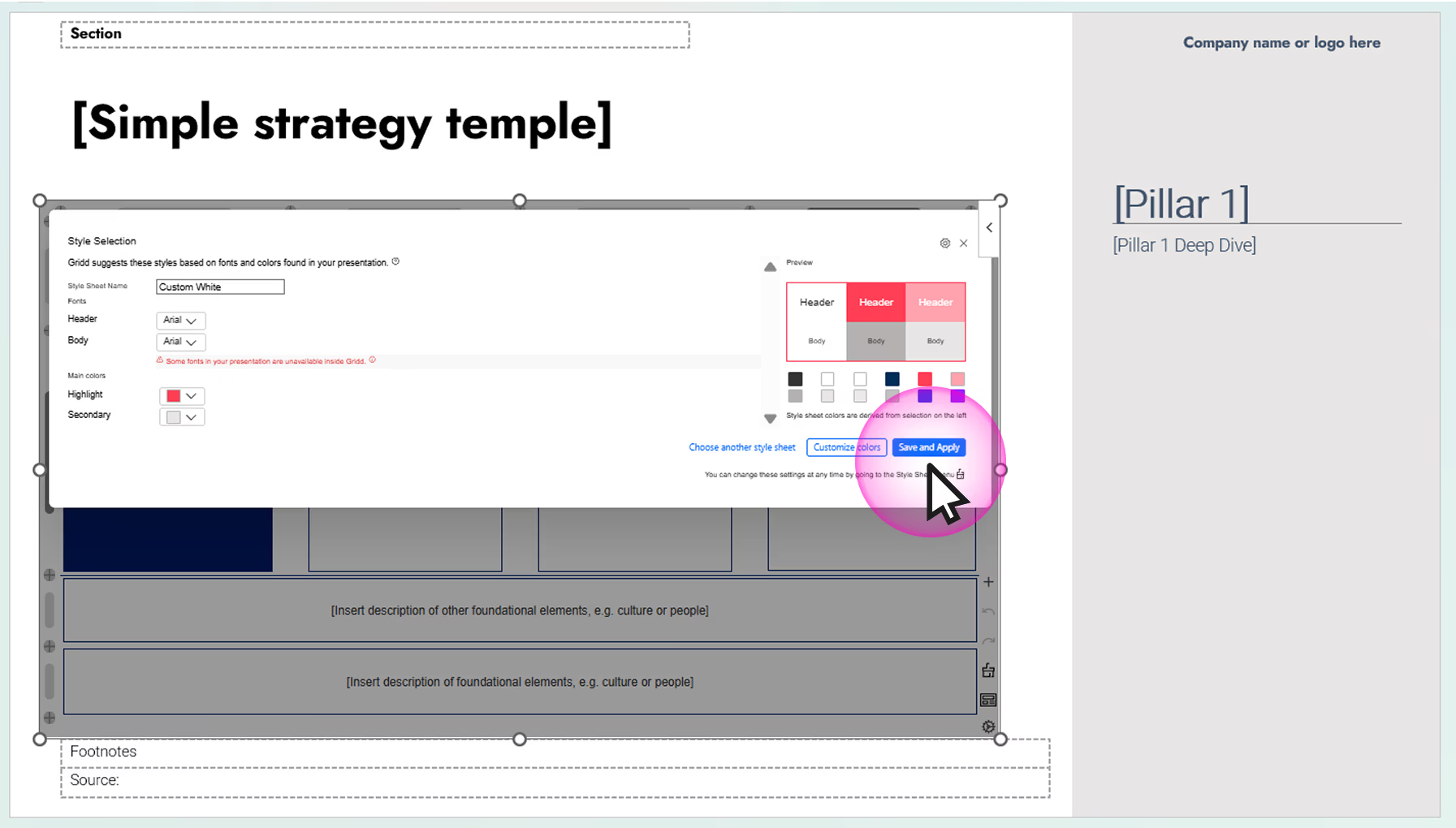
The Gridd library add-in allows you to add template slides from inside PowerPoint, rather than copying from another document. Follow these steps to install.
Problems getting started?
- Check that your Microsoft accounts are in sync. Verify the Microsoft email PowerPoint has for you — click the profile circle (or intials) in the top-right corner of PowerPoint — and use that to log into marketplace.microsoft.com/en-us/product/WA200009462 (on that page click "Sign In" at the top right).
- Your Gridd account must also be in sync. When you log into the Gridd Template Library, make sure that you use the email to which your Gridd confirmation email was sent.
- On a work computer, verify that your administrator allows third-party add-ins